Last updated: August 2026
What if you could tell ChatGPT “find me remote senior React jobs paying over $150k”, and it actually searched real job boards, saved the matches, and auto-applied for you?
That is exactly what the JobGPT MCP server does. It connects ChatGPT to the full JobGPT platform: 34 tools covering job search, applications, resumes, recruiter outreach, and more. No browser tabs. No copy-pasting. Just ask.
What is MCP?
MCP (Model Context Protocol) is an open standard that lets AI assistants connect to external tools and services. Think of it as giving your AI hands. It can reach out, search for jobs, submit applications, and pull back results, all within your conversation.
OpenAI added full MCP support to ChatGPT in 2025. Once connected, ChatGPT gains access to the entire JobGPT job search engine and automation platform.
What You Can Do
Once set up, just chat naturally with ChatGPT. Here are some things you can ask:
- “Search for remote Python developer jobs paying over $150k”
- “Create a job hunt for Senior Engineer roles in San Francisco”
- “Show me my application stats for the last 7 days”
- “Generate a tailored resume for this Google application”
- “Find recruiters for this job and draft an outreach email”
- “Auto-apply to the top 5 matches from my job hunt”
ChatGPT handles the back-and-forth with JobGPT automatically. You just describe what you want in plain English.
Two Ways to Connect
How you connect depends on where you use ChatGPT:
- ChatGPT on the web (recommended): sign in with your browser. No API key to copy. Uses secure OAuth.
- ChatGPT desktop app: paste an API key into a header.
Both need a paid ChatGPT plan (Plus, Pro, Business, Enterprise, or Edu). Custom connectors are not available on the free plan. You will also need a JobGPT account. You get 5 free auto-apply credits to start.
Option 1: ChatGPT Web with Developer Mode (Browser Login)
This is the easiest way and needs no API key. ChatGPT signs you in to 6figr with a secure OAuth popup.
Step 1: Enable Developer Mode
- Open ChatGPT on the web and go to Settings
- Navigate to Connectors, then Advanced settings
- Toggle on Developer mode
Step 2: Add the JobGPT Connector
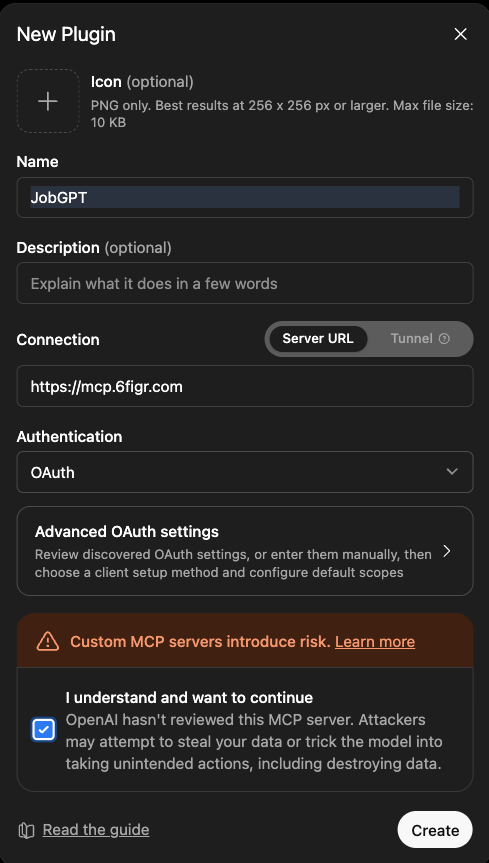
- Back in Connectors, click Create to open the custom connector dialog
- Name:
JobGPT - Connection: choose Server URL and enter
https://mcp.6figr.com/mcp - Authentication: select OAuth
- Tick I understand and want to continue, then click Create
- A popup opens to sign in to 6figr. Sign in and click Approve
- Done. The JobGPT tools are now available in your chats
Because this uses OAuth, your API key never gets pasted anywhere. ChatGPT receives a secure, scoped token instead, and you can revoke access anytime from your 6figr account settings.
Option 2: ChatGPT Desktop App (API Key)
The desktop app connects with an API key instead of a browser login. First, grab your key:
- Go to 6figr.com/account
- Scroll to MCP Integrations
- Click Generate API Key
- Copy the key (it starts with
sk_)
Then add the connector in the desktop app:
- Open Settings > Connectors and choose Connect to a custom MCP
- Name:
JobGPT - Type:
Streamable HTTP - URL:
https://mcp.6figr.com/mcp - Under Headers, click Add header and enter Key
Authorizationand ValueBearer your-api-key-here - Save. The JobGPT tools appear in your tool list
Leave the “Bearer token env var” and “Headers from environment variables” fields empty. The Authorization header with your sk_ key is all you need. No installation, no Node.js required. ChatGPT connects directly to the hosted JobGPT server over Streamable HTTP.
All 34 Tools at Your Fingertips
The JobGPT MCP server gives ChatGPT access to 34 tools across six categories:
| Category | What You Can Do |
|---|---|
| Job Search | Search with filters, get job matches, view job details |
| Profile & Salary | View and update profile, manage compensation, check credits |
| Job Hunts | Create and manage saved searches with auto-apply |
| Applications | Track applications, view stats, auto-apply, import jobs by URL |
| Resume | Upload, generate tailored resumes, calculate match scores |
| Outreach | Find recruiters and referrers, send personalized outreach emails |
Example Workflow
Here is what a typical job search session looks like with ChatGPT and JobGPT:
- You: “Create a job hunt for Senior Frontend Engineer roles in NYC, remote OK, $160k+ minimum”
- ChatGPT: Creates the job hunt with your filters and returns the details
- You: “Find matching jobs”
- ChatGPT: Returns fresh job matches you have not seen before
- You: “Add the Stripe and Airbnb jobs to my applications and auto-apply”
- ChatGPT: Saves them, triggers auto-apply, confirms submission
- You: “Generate a tailored resume for the Stripe application”
- ChatGPT: Creates an AI-optimized resume highlighting relevant skills
- You: “Find recruiters at Stripe and draft an outreach email”
- ChatGPT: Finds contacts and drafts a personalized message
All of this happens in a single conversation. No tab switching. No manual data entry.
Ready to supercharge your job search?
Add the connector, sign in, and start searching for jobs from ChatGPT in under a minute.
Troubleshooting
Tools not showing up in ChatGPT?
- Make sure Developer mode is enabled in Settings > Connectors > Advanced settings
- If you used browser login, finish the sign-in and click Approve in the popup before the tools appear
- Verify the URL is exactly
https://mcp.6figr.com/mcp, then start a new chat
“API Error (401)” when using tools?
Your session or API key is invalid or expired. If you used browser login, remove and re-add the connector to sign in again. If you used an API key in the desktop app, generate a new one at 6figr.com/account.
“Out of credits” message?
Operations like auto-apply and resume generation consume credits. You can purchase more credits here.
FAQ
Do I need an API key?
Not on the web app. ChatGPT Web with Developer mode uses a browser login (OAuth), so there is no key to copy. Only the desktop app needs an API key, pasted into the Authorization header.
Do I need ChatGPT Plus?
Yes. Developer mode and custom connectors require a paid plan: Plus, Pro, Business, Enterprise, or Edu. They are not available on the free plan.
Is the JobGPT MCP server free?
The MCP server itself is free and open source. You get 5 free auto-apply credits when you sign up for JobGPT. After that, credits start at $34.99/month.
Does it work outside the US?
Yes. JobGPT supports US, Canada, UK + 150+ countries. The job search covers global listings.
Do I need to install anything?
No. ChatGPT connects directly to the hosted JobGPT server over Streamable HTTP. There is nothing to download or install. Just add the connector in Settings and go.
Can I use this alongside other MCP connectors?
Absolutely. Just add JobGPT as another connector in your settings. All MCP servers work independently.
Does this work with the ChatGPT mobile app?
Developer mode connectors are currently available on the ChatGPT desktop app and web. Mobile support may be added in the future.
Stop manually applying to jobs.
Let ChatGPT and JobGPT handle the grunt work while you focus on interview prep.